






Here are the best PowerPoint alternatives to Create Professional Presentations:
1. Canva
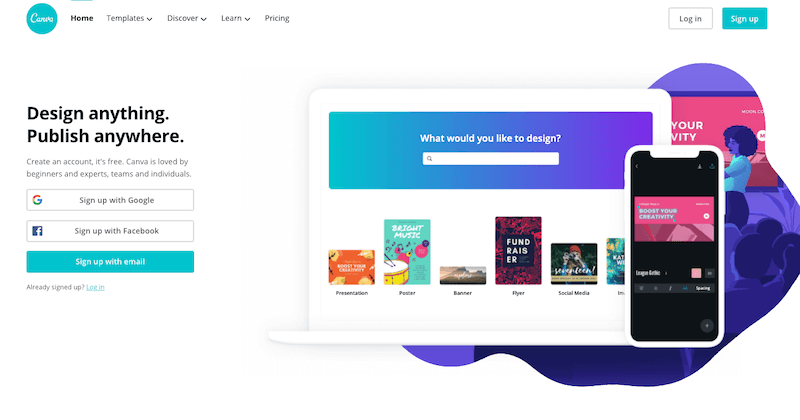
Yes, we have no doubts regarding Canva being one of the best alternatives available to PowerPoint. Built as a graphic design platform, Canva has all the tools that you will need to create a marvelous presentation, such as frames, charts, social media logos, gradients, more than 100 fonts, and many more.
It is very easy to use, even for a beginner, and it provides you with a lot of free templates to choose from. Canva lets you choose from a number of free photos, and there is an option to download your presentation in PowerPoint format.
To make this deal even more amazing, you can buy its pro pack, which is paid.
Also, you can check this list of best Canva alternatives to find a few more similar platforms.
2. Google Slides
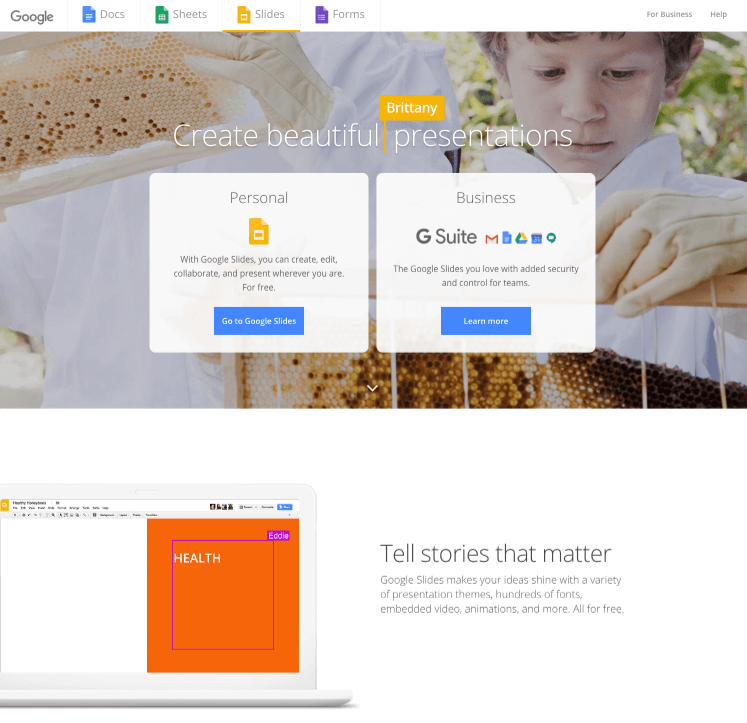
The 2nd spot on our list goes to Google Slides for all the benefits that it has over PowerPoint. One of the best features of Google Slides is that it can be easily shared and can be edited by the one with whom you share it.
It has a very simple user interface and can be edited or presented offline as well.
Additionally, if someone messes up with the file, it can be restored to its older version. Overall, a free tool that can easily replace PowerPoint.
Don’t miss this article about the best Google Slide templates that you can use.
3. Powtoons
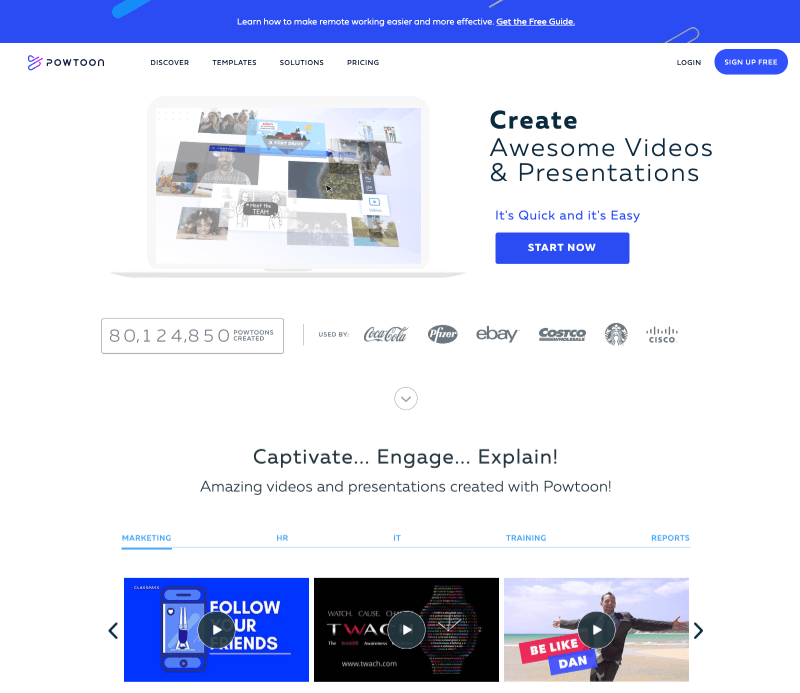
The use of animated characters, special effects, and templates makes Powtoon one of the best PowerPoint alternatives. If you have a script designed for a presentation, this might be the best tool for you.
With Powtoon, there are no longer boring slide stories; rather, you can create something funny or meaningful. You can unleash your creative spirit while designing a presentation. The pro pack is available for $89/month.
4. Prezi
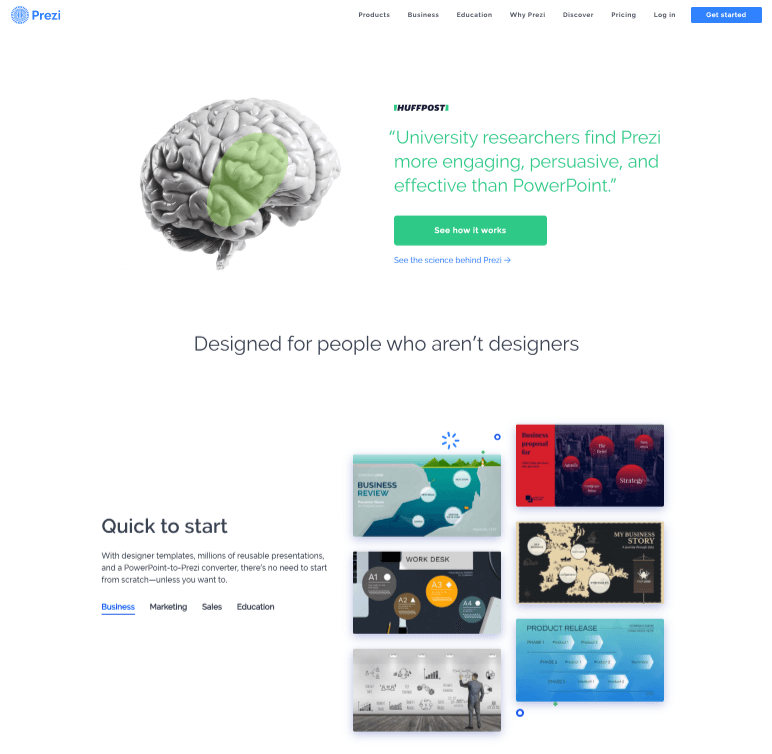
You have already made a presentation in PowerPoint and are now looking for a better alternative? Prezi allows you to import your PowerPoint presentation for conversion.
Like Google Slides, it can be stored in the cloud and can be shared with others for editing purposes. The best feature of Prezi is that it has non-linear presentation styles that make it less boring, and the zoom feature is the cherry on the cake.
5. Keynote
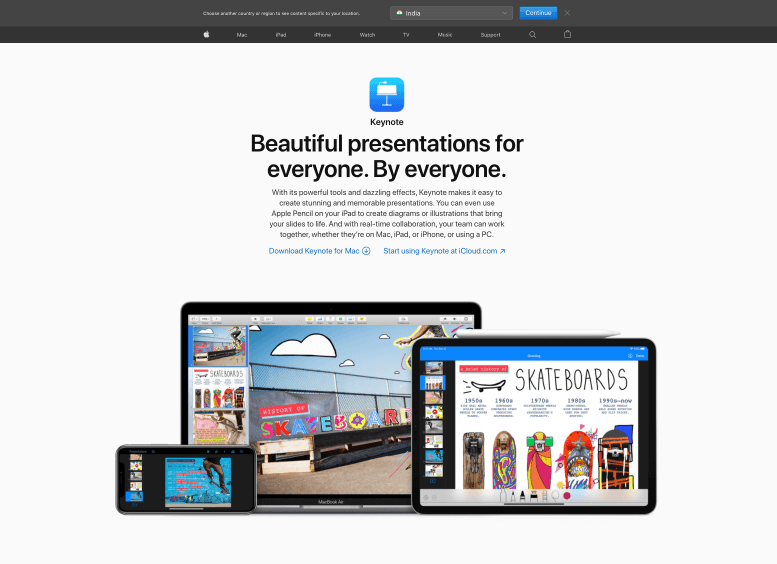
To give competition to Microsoft’s PowerPoint, Apple came up with Keynote, which is arguably one of the easiest tools to build your presentations with. The simple interface with charts and graphs, animations, and templates makes it a fan favorite.
Also Read: 50 Best free Keynote templates
It adds a professional touch to your presentation. They are easily shareable and can be exported into other formats, such as a PowerPoint file or a video. You can use your iPhone to scan a document and upload it to Keynote for presentation.
6. Visme
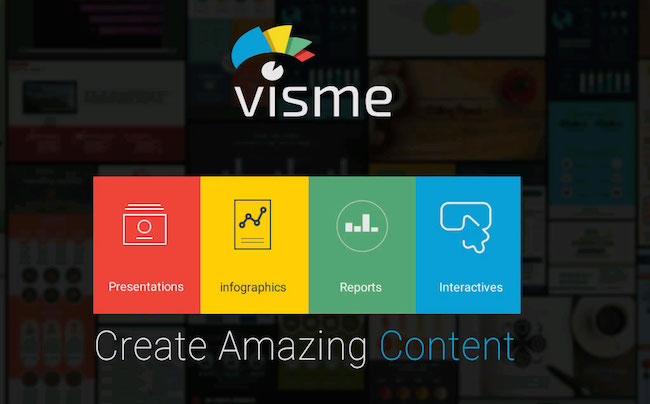
If you want to add infographics, visuals, and reports and want to create an impression of a graphic designer, Visme will help your presentation look that good. The templates and HD backgrounds will make your boring-looking presentation more appealing.
The built-in library has over 900 layouts, and you can add animation to any element you desire. Visme allows you to download your presentation as an image, PDF, or HTML5. This tool also lets you record voice.
7. Emaze
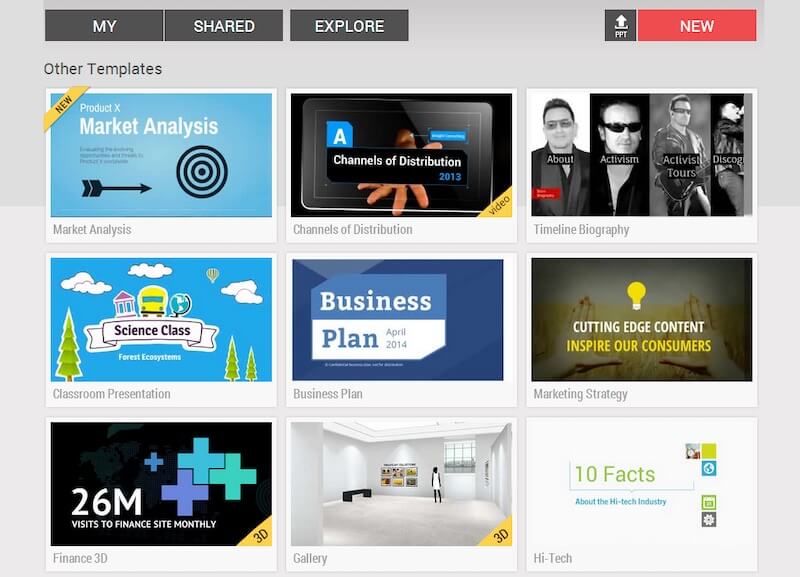
Next on our list is Emaze, which has a very easy-to-use interface. One of the best features of Emaze is that it lets you build 3D presentations that will create a great impression.
There are hundreds of 2D and 3D templates to choose from to give a new style to your presentation. It allows you to download HTML, MP4, PDF, and many more formats. It is easily shareable with your team, and there’s a free pack that might appeal to students.
8. Slidebean
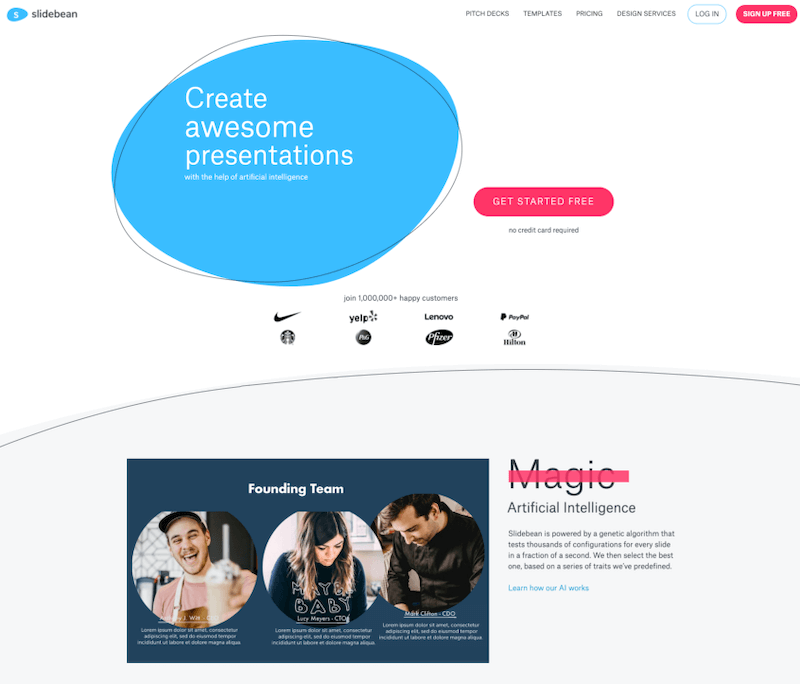
If you are not familiar with the design part that a presentation needs, Slidebean would be the right PowerPoint alternatives for you. Slidebean relies on the content you enter as text, and then its AI turns it into a convincing presentation.
You don’t have to search for images or icons as Slidebean has its own library for images, animated GIFs, etc. It can be easily shared and collaborated with others.
On top of that, it provides analytics for your presentation.
9. Haiku Deck
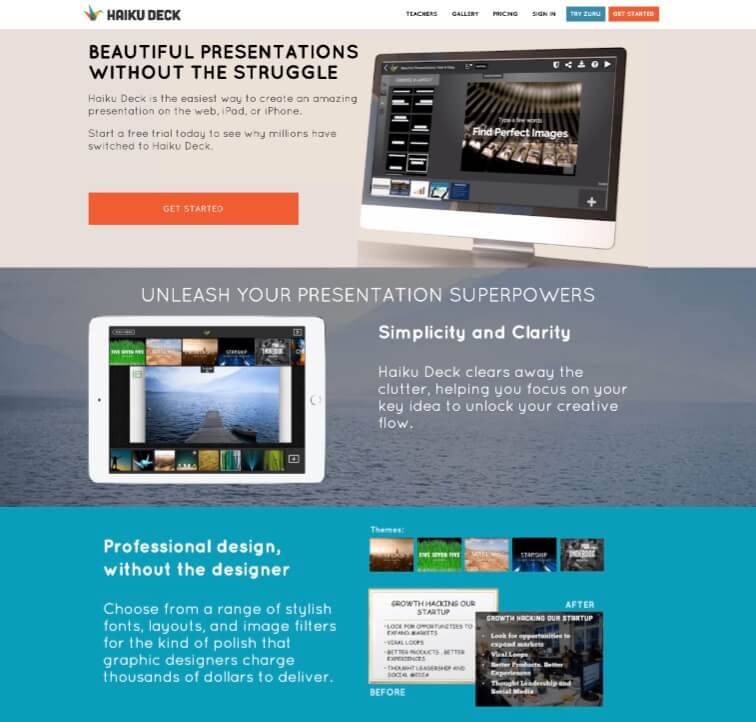
To make a beautiful presentation, you need Haiku Deck as it allows you to choose from more than 40 million free images. It is available as an app, but is super easy to use.
Haiku Deck provides you with layouts, templates, fonts, charts, and graphs to make a beautiful presentation. You can also embed YouTube videos in your presentations to create a professional impression.
10. Beautiful.ai
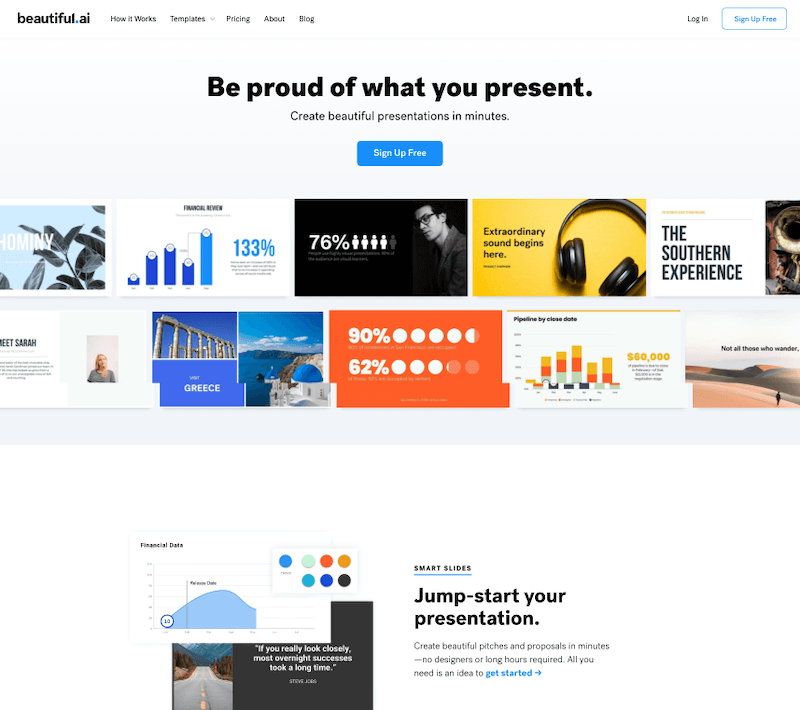
Beautiful.ai is the right tool for you if you are stressing out due to the deadline for your presentation, because it’s Artificial Intelligence that does not require much work from your end.
It has a library that lets you choose from a million free images and icons. Do not let AI scare you, as it is super easy to use Beautiful.ai, and you can take advantage of charts and infographics too.
Some of the biggest brands are using Beautiful.ai to create their presentations. You can also export your presentation to PDF or PowerPoint.
11. Zoho Show
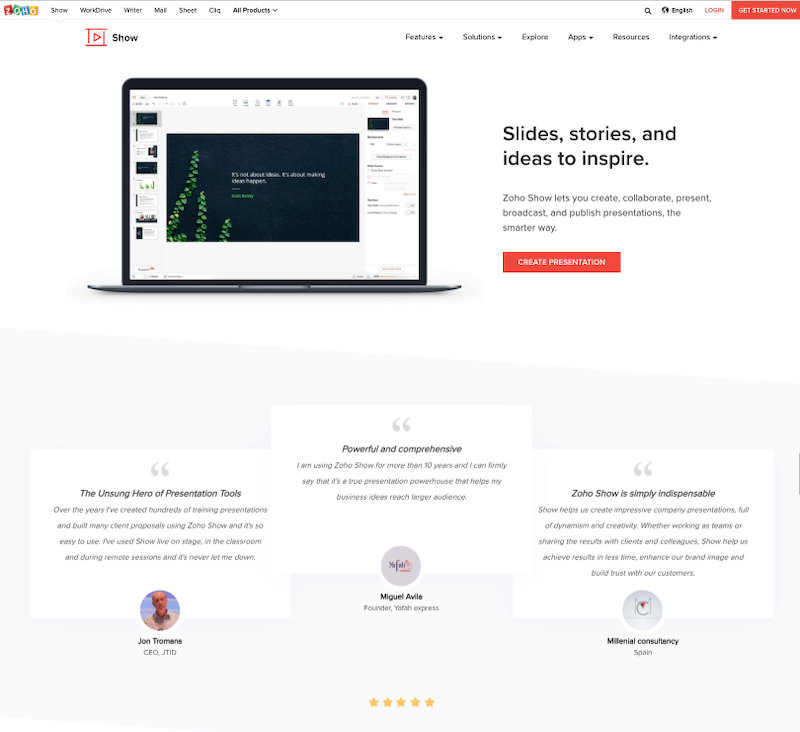
Zoho Show is an online-based presentation tool known for its customizing abilities. The best feature of this tool is that you can easily import and export files in different formats.
With over 20 themes and layouts, you can even use animation for elements.
The embed feature lets you embed tweets, YouTube videos, and Flickr images to make your presentation look more stylish. You can publish your presentation on different websites or share it with anyone.
12. Ludus
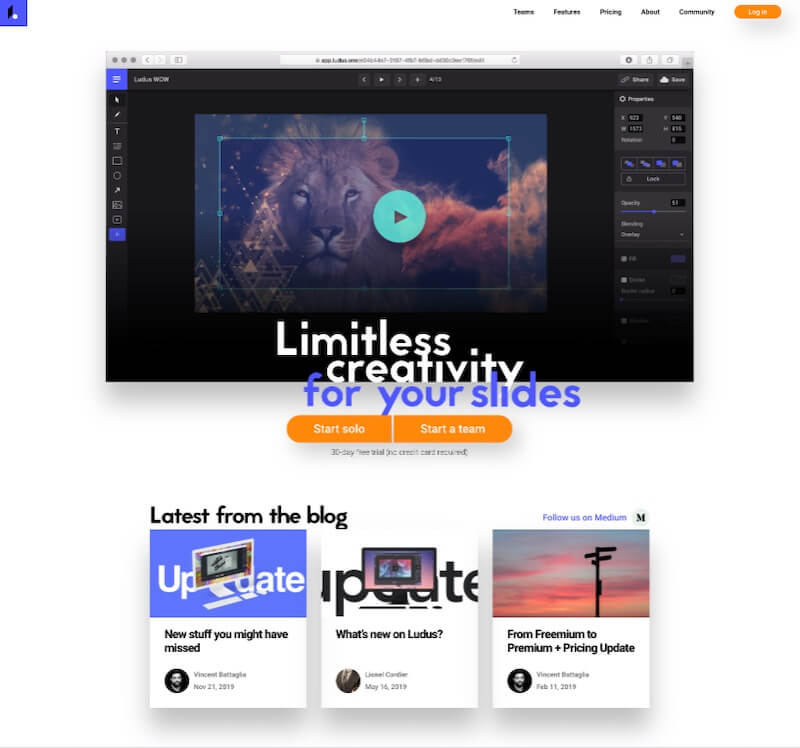
With creative backgrounds and templates, Ludus will provide you with the right professional feel for your presentation. With this tool, you can edit the color and size of any element, such as GIFs, icons, images, etc.
You can upload videos and fonts to make your presentation look more beautiful. The drag-and-drop feature of this tool makes it very easy for people to use. The sharing and compatibility will make you forget PowerPoint.
13. Glisser
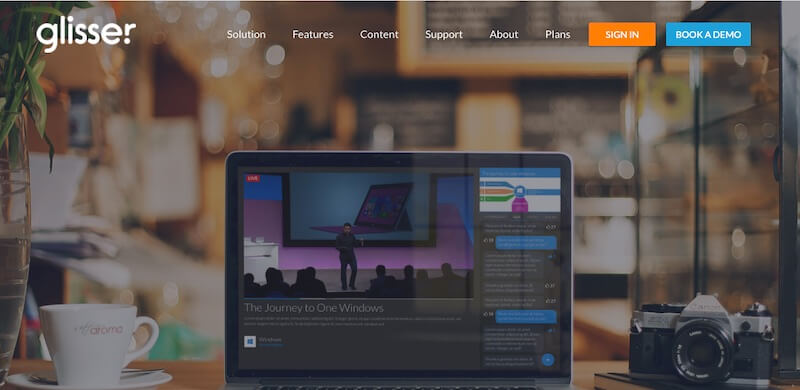
To make your presentation more engaging, Glisser is the perfect alternative to PowerPoint. You can take advantage of the audience poll, social media wall, and interactive Q&A features on this tool.
You can easily share your content with any device and attach notes to any slide. Glisser will provide your presentation analysis through beautiful infographics and charts.
14. FlowVella
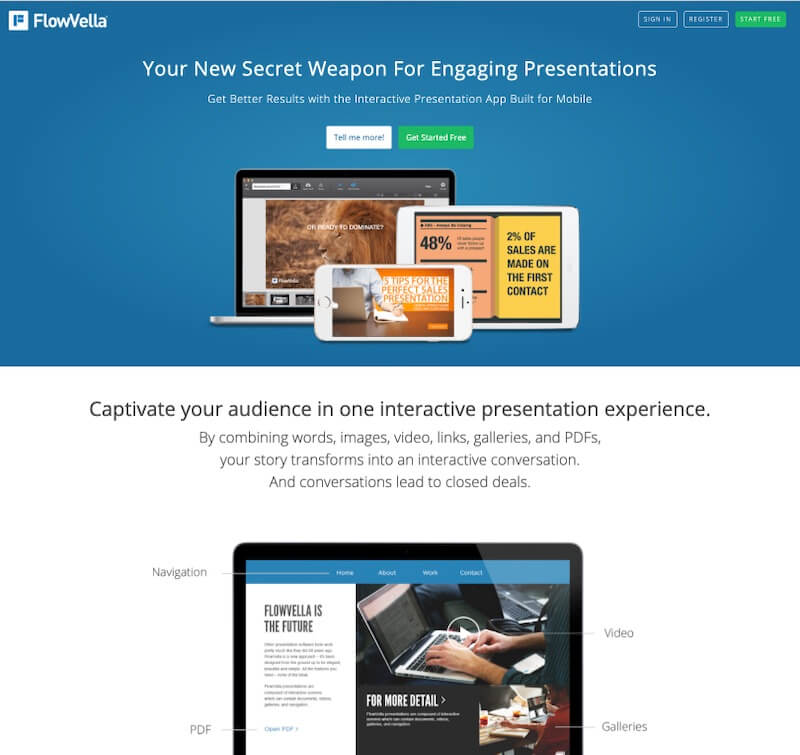
FlowVella is designed for Mac or iOS users to build engaging presentations. The tool supports videos, animations, GIFs, links, charts, infographics, and PDFs.
The tool’s interface is fun and intuitive. If you have to get your sales presentation ready, FlowVella would be a perfect choice for you. The cloud lets you store your work, and you can easily share it with anyone. It gives you an option to create a custom shareable URL.
15. Genially
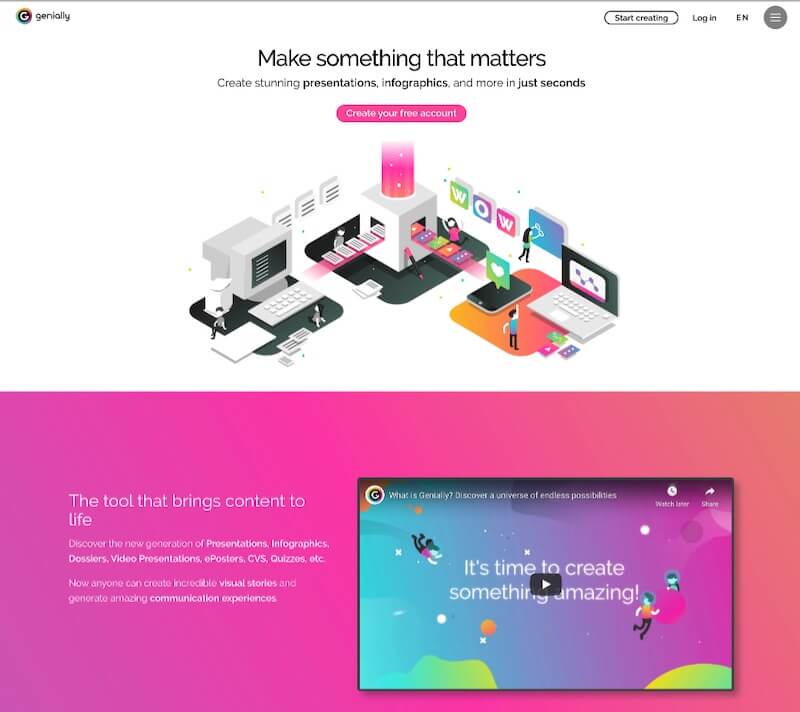
Genially gives a chance to the audience of the presentation to not just be a spectator but also participate. The animation feature lets you forget the boring PowerPoint and allows you to design beautiful visual slides.
You can integrate videos, graphics, social media, and links quickly and easily. From the SEO point of view, you can integrate your Google Analytics Account with your presentation to monitor the interactions.
It might be the last alternative on our list, but it still gives tough competition to PowerPoint.
16. VideoScribe
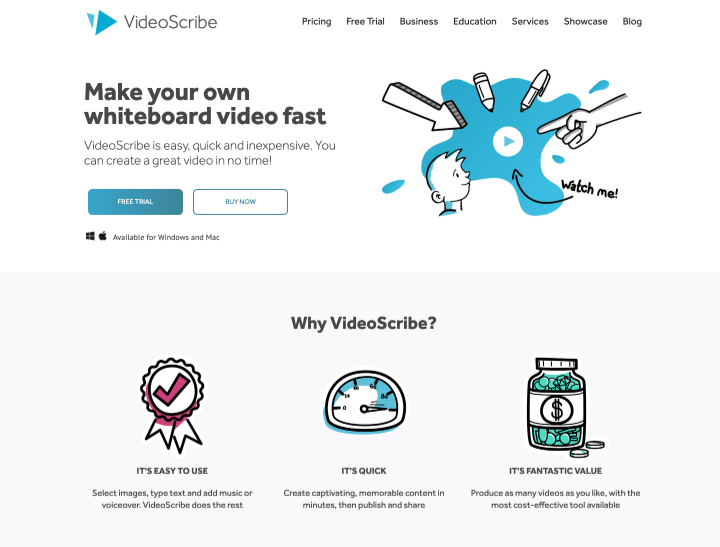
VideoScribe is a software that will enable you to create great looking and engaging video presentations. It will make sure that you are able to convey your message with easy-to-understand videos.
Videos are very popular these days. Be it general content or presentation, a quality video can make it super simple for the audience to understand the content. And when you have software like Acquire, the process becomes even simpler.
If you wish to create a video presentation to describe your product or your educational content, VideoScribe gives you all the resource you need.
It comes with a drag-and-drop whiteboard video builder that is easy to use and comes with thousands of customizable images that you can use on your presentation.
Overall, it is a very handy software.

This article is written by Begindot editorial staff. If you wish to contribute, Contact Us here


