

In digital realms, efficiency reigns supreme. The venerable act of duplication stands central. It is a fundamental operation and every Mac user employs it. Mastering how to copy and paste on Mac empowers you. It streamlines your daily workflow and enhances productivity greatly. This guide unveils its secrets.
Many tasks demand this skill. Moving text, files, or images requires precise execution. Mac offers elegant methods with simple and advanced ways. We shall explore them all so that you will become proficient. This foundational knowledge helps and truly transforms work.
This comprehensive exploration delves deep into the art of transference. We dissect its core mechanics and celebrate its utility. Moreover, we shall ponder its nuances. Prepare to journey through its ease. Discover its potent power and understand why this skill matters. It truly defines Mac use.
The Cornerstone Commands: Understanding Copy and Paste
At its heart, “copy and paste” is simple; it involves two key actions. First, you copy an item. This duplicates it digitally and places it on the clipboard. This invisible holding area. Then, you paste the item. This transfers the content from the clipboard to a new locale seamlessly.
This process works universally across diverse Mac applications. From documents to browsers, from spreadsheets to email. Learning how to copy and paste on Mac truly helps. It saves much time and prevents needless retyping. It simplifies complex tasks.
Its philosophy resonates deeply. Work should be efficient, and creation should be fluid. Thus, Apple designed these commands with user ease in mind; they offer precision and speed. It invites everyone to partake. They may witness Mac’s elegance. This is its grand promise.
Copy, Cut, and Paste Keys on a Mac: Essential Commands
| Action | Keyboard Shortcut | Explanation |
| Copy (Text, Image, File) | Command (⌘) + C | Copies the selected item. Places it on the clipboard. |
| Cut (Text, Image, File) | Command (⌘) + X | Removes the selected item. Places it on the clipboard. |
| Paste (Any Item) | Command (⌘) + V | Inserts clipboard content. At the cursor’s location. |
| Paste and Match Style | Option (⌥) + Command (⌘) + V | Pastes text only. Adopts new formatting. |
| Copy File Path | Option (⌥) + Right-Click | Select “Copy as Pathname.” Saves its location. |
Unveiling the Methods: How to Copy and Paste on Mac
The operational rhythm is clear. Mac provides several pathways. Each method serves a purpose and offers a unique speed. Mastering them all truly helps and boosts your proficiency.
1. The Classic Keyboard Shortcuts: Speed at Your Fingertips
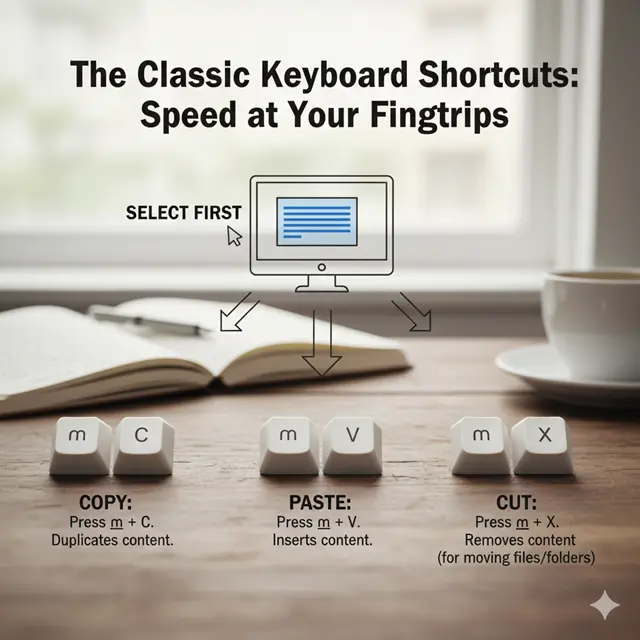
This is the swiftest method. Keyboard shortcuts reign supreme. They are muscle memory commands. Learn them well, deeply.
- Select First: Choose your item. Highlight text. Click a file. Make your selection clear.
- Copy: Press Command (⌘) + C. This duplicates content. It sends it to the clipboard. No visual change, usually.
- Paste: Press Command (⌘) + V. This inserts content. From clipboard to cursor. It places your item.
- Cut (for moving files/folders): Press Command (⌘) + X. This removes content. It sends to the clipboard. Use Command (⌘) + V to place. (Note: Command + X often works for text in Mac apps, but for moving files, you Command + C then Option + Command + V to “move” instead of “copy” upon pasting.)
These shortcuts are universal. They work almost everywhere and are truly invaluable. Practice them regularly.
2. The Intuitive Edit Menu: A Visual Approach
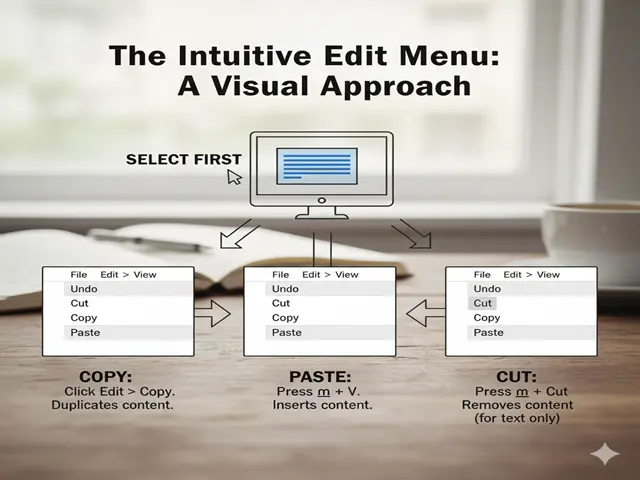
For those less keen on shortcuts. The menu bar offers aid and provides clear options. A visual confirmation helps.
- Select First: As before, choose your item. Highlight text. Click a file.
- Copy: Go to the top menu bar. Click “Edit.” Select “Copy.” The item is copied.
- Paste: Move to your destination. Click “Edit.” Select “Paste.” Content is inserted.
- Cut: For text, use “Cut.” For files, “Edit” often lacks “Cut.” Use Command + C, then Option + Command + V for files.
This method is slower. Yet, it is very clear and confirms your actions. Good for beginners.
3. The Contextual Right-Click Menu: Quick Access

The right-click menu is fast. It provides relevant options based on your selection. A handy shortcut indeed.
- Select First: Choose your item. Highlight text. Click a file.
- Right-Click: Control-click the item. Or use two fingers. On your trackpad. A menu appears.
- Copy: Select “Copy” from the list. The item is copied.
- Paste: Move your cursor. Right-click again. Select “Paste.” Content is inserted.
This method combines speed. With visual clarity. Many users prefer it as it is very efficient.
Mastering Nuances: Advanced Copy and Paste Techniques
Beyond the basics, Mac offers more. Specialized pasting options exist, and they elevate your workflow. Understanding these provides more control.
1. Paste and Match Style: Formatting Freedom

Often, copied text carries formatting. This includes fonts, sizes, and colors. Pasting normally retains it. “Paste and Match Style” changes this.
- Action: Copy text (Command + C). Move to the destination. Press Option + Shift + Command + V.
- Result: Text pastes. It adopts the target format. No extra styles appear. This keeps things clean.
- Benefit: Maintains visual consistency. Saves time reformatting. A true boon for writers.
2. Moving Files (Cut and Paste Equivalent)

Mac handles file “cutting” differently. Command + X for files only copies them. To truly move a file:
- Action: Copy the file (Command + C). Navigate to the new folder. Press Option + Command + V.
- Result: The file moves. It disappears from the original. It appears in the destination. This is efficient.
- Benefit: Avoids duplicate files. Keeps your system tidy. A smarter way to organize.
3. Copying File Paths: For Developers and Organizers
Sometimes, you need a file’s location. Not the file itself. Mac provides this easily. A great trick for many.
- Action: Select the file. Press Option + Command + C.
- Result: The file’s path copies. It goes to your clipboard. You can paste it. Into text, code, or a terminal.
- Benefit: Essential for scripting. Great for sharing locations. Precise reference making.
4. Copying Screenshots to Clipboard: Instant Sharing
You can take screenshots. And send them to the clipboard without saving a file. This is fast sharing.
- Action (Full Screen): Press Control + Shift + Command + 3.
- Action (Selection): Press Control + Shift + Command + 4. Then drag to select.
- Result: Screenshot copied. Paste directly anywhere. No clutter on the desktop.
- Benefit: Quick sharing in chats. Direct insertion into documents. Very efficient process.
5. The Universal Clipboard: Seamless Apple Ecosystem
If you own multiple Apple devices. There is even more power. The Universal Clipboard connects them. Your Mac, iPad, and iPhone share.
- Action: Copy on one device. Paste on another. It just works.
- Result: Content transfers wirelessly. Between connected devices. All signed into iCloud.
- Benefit: Incredible workflow fluidity. Move ideas effortlessly. True device synergy.
Mastering these advanced methods elevates you. From a basic user to a Mac power user. Each trick saves precious time and makes your work smoother.
Mac vs. Windows: A Copy-Paste Comparison
| Feature | How to Copy and Paste on Mac | Windows (Common Methods) |
| Copy Shortcut | Command (⌘) + C | Control (Ctrl) + C |
| Paste Shortcut | Command (⌘) + V | Control (Ctrl) + V |
| Cut Shortcut | Command (⌘) + X (for text) | Control (Ctrl) + X (for text or files) |
| File Move (Cut) | Command (⌘) + C then Option + Command (⌘) + V | Control (Ctrl) + X then Control (Ctrl) + V |
| Paste & Match Style | Option + Shift + Command (⌘) + V | Control (Ctrl) + Shift + V (in some apps) |
| Clipboard History | Not built-in directly (requires third-party apps) | Built-in (Windows key + V) since Windows 10 |
| Universal Clipboard | Yes (across Apple devices via iCloud) | No (requires third-party apps for cross-device) |
| Right-Click Menu | “Copy” / “Paste” options available | “Copy” / “Paste” options available |
| Menu Bar Option | “Edit” > “Copy” / “Paste” | “Edit” (less common, usually app-specific) |
Understanding the Clipboard: Your Invisible Digital Assistant
At the core of this magic. Lies the clipboard. It’s a temporary storage space. Your Mac maintains it. When you copy something, it goes straight there and waits to be pasted. An unseen helper, always.
This clipboard is versatile. It holds varied content: text, images, and files, even complex objects. It can hold only one item. The latest copied one replaces the old. So, remember this fact.
Knowing about the clipboard helps. It explains the process, and it clarifies why paste works. It’s truly fundamental. It’s your Mac’s memory. For immediate transfers, a powerful, unseen force.
Common Copy-Paste Scenarios and Solutions
Mastering how to copy and paste on Mac involves more. It’s about knowing when and where. Different situations arise. Each demands a nuanced approach. Here are common scenarios.
1. Copying Text from Web Pages

- Scenario: You find useful text online. You want to save it in your document.
- Method: Highlight the desired text. Use Command + C. Go to your document. Use Command + V.
- Tip: If formatting is unwanted. Use Option + Shift + Command + V. This removes styles. It keeps text clean.
2. Copying Images from Websites

- Scenario: An image catches your eye. You need it elsewhere for a presentation, perhaps.
- Method: Right-click the image. Select “Copy Image.” Or, Control + Click. Then “Copy Image.” Go to your app. Use Command + V.
- Caution: Respect copyrights always. Do not misuse images and give proper attribution.
3. Copying Files Between Folders
- Scenario: Files need new homes. You wish to move from one folder to another.
- Method: Select file (Command + C). Open the destination folder. Use Option + Command + V. This truly moves it.
- Alternative: Drag and drop the file. Hold the Option key to copy the Release Option to move.
4. Copying and Pasting in Terminal (Command Line)
- Scenario: Working with commands. Or file paths. In the Terminal app.
- Method: Select text. Use Command + C. To paste, use Command + V. It’s still the same.
- Note: Some older Terminal settings. Might require Shift + Command + C/V. Check preferences if needed.
5. Copying Email Addresses and Phone Numbers
- Scenario: Quickly grabbing contacts. For your address book or a new email.
- Method: Highlight the contact info. Use Command + C. Open your Contacts app. Or a new email draft. Use Command + V.
- Efficiency: Many apps auto-detect. And format the data. It saves much effort.
Troubleshooting Copy-Paste Issues: When Things Go Awry
Sometimes, copy-paste misbehaves. It can be frustrating. Do not despair, common solutions exist. Try these quick fixes.
1. Nothing Pastes: Is the Clipboard Empty?
- Problem: You copied. Nothing pastes. The clipboard is silent.
- Solution: Re-copy the item. Ensure proper selection. Try Command + C again. Then paste. Test with simple text. “Hello” copied and pasted.
- Tip: Use a clipboard manager. It shows your history. You can see what’s copied.
2. Incorrect Formatting Pastes: Style Mismatch
- Problem: Pasted text looks wrong. It carries unwanted styles.
- Solution: Use “Paste and Match Style.” The shortcut is Option + Shift + Command + V. This strips formatting. It adopts a destination style.
- Alternative: Paste into a plain text editor first. Like TextEdit. Then copy again. It removes all styles.
3. Copy/Paste Not Working in Specific App
- Problem: Only one app fails. Copy-paste is broken there. Other apps are fine.
- Solution: Restart that specific application. Close it fully. Then reopen it. Often fixes glitches.
- If persistent: Check app settings. Look for keyboard shortcut conflicts. Update the application.
4. Universal Clipboard Fails: Across Devices
- Problem: Cannot paste from iPhone to Mac. Or vice versa.
- Solution: Check iCloud login. Both devices must use the same ID. Ensure Wi-Fi/Bluetooth are on. Devices need to be close. Restart both devices.
- Tip: Update all devices. To the latest OS. This often resolves issues.
5. Keyboard Shortcuts Stop Working
- Problem: Command + C and Command + V do nothing.
- Solution: Restart your Mac. This clears many issues. Check keyboard settings. In System Settings (or Preferences). Look for conflicts.
- Hardware: Try an external keyboard. If it works, the internal one might be faulty.
Enhancing Copy-Paste: Third-Party Mac Utilities
Mac’s built-in tools are robust. Yet, third-party apps expand them. They offer more power, more convenience, truly.
1. Clipboard Managers: History at Your Fingertips
- Function: Store multiple copied items. Not just the last one, access past copies easily.
- Popular Apps: Paste, CleanShot X (with history). Alfred (with Powerpack).
- Benefit: Great for heavy users. Copy many things. Paste in any order. Saves huge time.
2. Text Expanders: Snippets and Automation
- Function: Type short abbreviations. They expand to long text or common phrases.
- Popular Apps: TextExpander, Alfred (again!). Keyboard Maestro.
- Benefit: Paste common text faster. Automating repetitive typing boosts efficiency greatly.
3. Screenshot Tools: Beyond Mac’s Built-in
- Function: Offer advanced screenshot options, Annotation, and cloud upload. Clipboard integration.
- Popular Apps: CleanShot X, Snagit.
- Benefit: More powerful visual capture. Direct copy to clipboard for streamlining image workflow.
These utilities transform the process. They make how to copy and paste on Mac even more powerful. Consider them carefully. They are worthy investments.
Copy-Paste Strategies: Efficiency vs. Simplicity
| Strategy | Description | Pros (Advantages) | Cons (Limitations) |
| Keyboard Shortcuts | Using ⌘+C, ⌘+V, ⌘+X for rapid action. | Fastest. Universal. Muscle memory. | Requires learning. No visual confirmation. |
| Right-Click Menu | Contextual menu via Control+Click or two fingers. | Visual. Intuitive. Good for beginners. | Slower than shortcuts. Requires mouse/trackpad. |
| Edit Menu | Using the top menu bar’s “Edit” options. | Very Clear. Always visible. Safe option. | Slowest. Cumbersome for frequent use. |
| Paste & Match Style | ⌥⇧⌘V to paste text without source formatting. | Cleanliness. Avoids formatting issues. | Longer shortcut. Text-specific. |
| Universal Clipboard | Copy on one Apple device, paste on another. | Seamless Workflow. Cross-device. Convenient. | Requires Apple ecosystem. iCloud/connectivity. |
| Clipboard Managers | Third-party apps storing clipboard history. | History. Multi-item paste. Highly efficient. | Requires installation. Adds background process. |
| Drag & Drop (Files) | Directly moving files by clicking and dragging. | Visual. Intuitive file management. | Can accidentally move. Less precise for text. |
My Personal Journey: Embracing Mac’s Efficiency
I recall my initial Mac days, a novice user, truly. Transitioning from other systems. My fingers felt quite lost. The Command key, so unfamiliar. It caused much confusion. Basic actions, slow even how to copy and paste on Mac seemed alien.
My early workflow suffered. I typed things often and re-entered data repeatedly. My productivity lagged badly, and frustration sometimes mounted. Copying files felt daunting. The efficiency, elusive. I yearned for fluidity. My old habits clung fast.
Then, a turning point came. I forced dedicated practice. I drilled the shortcuts and Command + C, Command + V. They became muscle memory. Like breathing, now automatic. The speed felt immense. A true revelation, honestly.
I began exploring more. The “Paste and Match Style.” What a brilliant discovery! No more messy formatting. My documents stayed pristine. Moving files became seamless, then Option + Command + V helped. My desktop stayed organized. It was truly transformative.
The Universal Clipboard, oh wow. A marvel of modern tech. Copying on my iPhone. Pasting instantly on Mac. Ideas flowed freely between all my devices. It felt like magic. My creative process soared.
This journey taught me much. It’s not just shortcuts; it’s truly a mindset. Embracing Mac’s design. Trusting its elegant logic. Mastering these commands. It saved countless hours and made work a joy. Now, my Mac sings and works with me, always.
Conclusion: Your Enhanced Mac Journey Begins
Your Mac journey now transforms. The art of duplication is mastered, and how to copy and paste on Mac is now clear. It’s a foundational skill that unlocks vast efficiency. This guide illuminated pathways. From simple shortcuts learned to advanced, nuanced tricks.
You explored core commands Command + C and Command + V. These are your new friends. You discovered clever variations. “Paste and Match Style” helps. File moving is now swift, even Universal Clipboard thrills, and your Apple ecosystem thrives.
Troubleshooting fears diminish, and solutions are now at hand. Third-party tools beckon for even greater power. Your workflow streamlines greatly, and productivity surges forth. This knowledge empowers you. Use it wisely, now.
Embrace this newfound ease. Let your Mac serve better. Every click, every keystroke. It moves with purpose: Copy, Paste, Create. Your digital life improves, and this truly defines mastery.

I’m Bipasha Zaman, a dedicated Content Writer with a passion for crafting clear, engaging, and impactful content. I specialize in creating blogs, and articles, that inform, inspire, and connect with readers. My goal is to deliver content that adds value, and ells stories effectively. I have worked across diverse niches, consistently delivering high-quality content that builds brand authority and strengthens online presence.